Configuring a Note Feed Tool
Note: The Trend Tool requires Microsoft .NET Framework in accordance with CygNet system requirements. If you plan to associate a Trend Tool with a Note Feed Tool, it must be a Studio-wrapped Trend Tool, the Note Feed Tool must be a Studio-wrapped Note Feed Tool. Studio-wrapped tools are those available by default on the tool palettes. If you plan to use a Note Feed Tool without a Trend Tool, the Note Feed Tool requires both NoteFeed.dll and CxTrend.ocx. See the CygNet v9.8 System Requirements for more information.
 A Note Feed Tool can be configured to display a running list or "feed" of notes from an associated Trend Tool. The Note Feed Tool is designed to interoperate with a single associated Trend Tool; it is not a stand-alone tool.
The associated Trend Tool Display Information mode Notes must be activated in order for the Note Feed Tool to display notes. Only notes that fall within the trend's data/view window are listed on the Note Feed Tool. Notes that fall out of scope are removed from the Note Feed Tool upon a Trend Tool refresh, while notes that come into scope upon a Trend Tool refresh are added to the Note Feed Tool. Note labels on the Note Feed Tool are resorted accordingly. Note labels located on a Note Feed Tool reflect corresponding note labels on the trend. Items on the Note Feed Tool are in descending order where the topmost item is the most recently added item. In-scope note records may be viewed and edited from a Note Feed Tool by double-clicking the note's label on the note feed.
|
Click the thumbnail to see |
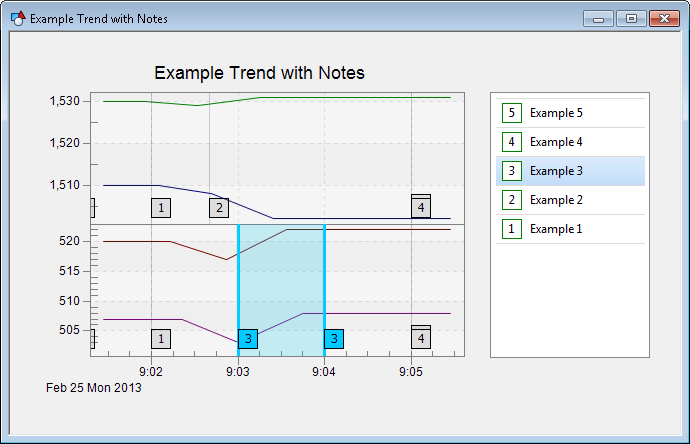
The Note Feed Tool is installed to the Global Assembly Cache (GAC). Upon installation, its timestamp in the GAC reflects the date and time it was installed to the GAC, not when the file was created. To check the file's version, see the file's properties.
See also Using a Note Feed Tool.
To Configure a Note Feed Tool for Use with a Trend
- In CygNet Studio, add a Trend Tool to the relevant screen.
- Configure the Trend Tool to suit your needs. See Notes – Configuring a Trend Tool and CygNet Studio – Configuring the Trend Tool.
- Add a Note Feed Tool to the screen.
- Associate the Note Feed Tool with the Trend Tool.
- Open the Note Feed Tool Property Sheet.
- In the [Trend] box, type or select the Object Code of the Trend Tool you want to associate this Note Feed Tool with.
- Configure other properties of the Note Feed Tool. See Note Feed Tool – Properties.
- When you are done configuring the various properties of the Note Feed Tool, save and run the screen to test its functionality.
See also Note Feed Tool and Trend Tool.

